 tvbroadview.com
We may receive a commission on purchases made from links.
Smart TVs offer an undeniable convenience, letting you do everything from accessing your favorite streaming services to browsing the internet. While that’s all great, there are also some privacy concerns that come with using a smart TV. One of them is how most TV brands use various technologies to track your viewing habits and monetize that data. For example, most smart TVs include Automatic Content Recognition (ACR), which is a technology that can detect what you’re watching on your TV.
Anytime you play content via cable, streaming devices, DVD, or even through your gaming console, your TV manufacturer can know what you’re watching and when you’re watching it. It analyzes both audio and video that’s playing and even takes note of how long you play a specific content. All of this data helps companies run personalized ads. Privacy violations by smart TV manufacturers are not just theoretical. In 2017, VIZIO settled the charges for using complex pixel-matching to collect user data without consent.
While TV manufacturers now offer options to disable ACR and other tracking features, they are often buried deep within menus and labeled under different names, so it’s not always easy to access them. Fortunately, you can take steps to protect your privacy and prevent your smart TV from spying on you. In this guide, we’ll walk you through the steps for disabling ACR, resetting your advertising ID, and adjusting key privacy settings on major smart TV brands. Let’s get started!
Google or Android TV
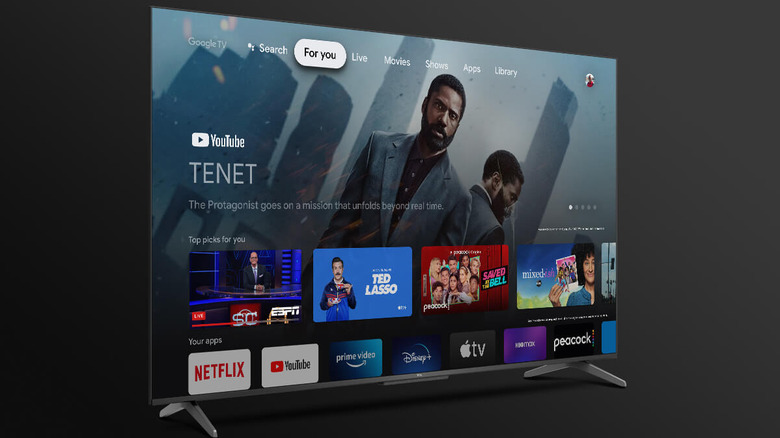
Several popular TV manufacturers, including Sony, TCL, Hisense, Phillips, and Sharp, use the Google TV platform. While setting up a Google TV, you need to sign into a Google account and accept the company’s privacy policies to access all the smart TV features. Although there’s no way to opt out of these policies, you can limit ad tracking on Google TV by heading to Settings > Privacy > Ads and then selecting Reset advertising ID. You can then select the Delete advertising ID in the same menu. If you have an older Android TV, you can find this option either under Settings > Device Preferences or Settings > About > Legal Information, depending on the model.
Further, you can prevent Google TV from collecting app usage and diagnostics data by heading to Settings > Privacy > Usage & Diagnostics toggle. On Android TV, you can disable this privacy setting by heading to Settings > Personal > Usage and Diagnostics and turning off the toggle. Google doesn’t use ACR on Google TV or Android TV.
However, TV manufacturers using Google TV can still include their own policies and settings. For example, some Sony TV models include Samba Interactive TV, which uses ACR. If you have a Sony TV, you can disable this feature by heading to Settings > System Preferences > Samba Interactive TV. Similarly, other TV manufacturers can include ACR under different names, so it’s a good idea to explore all privacy settings and disable such features.
LG TV
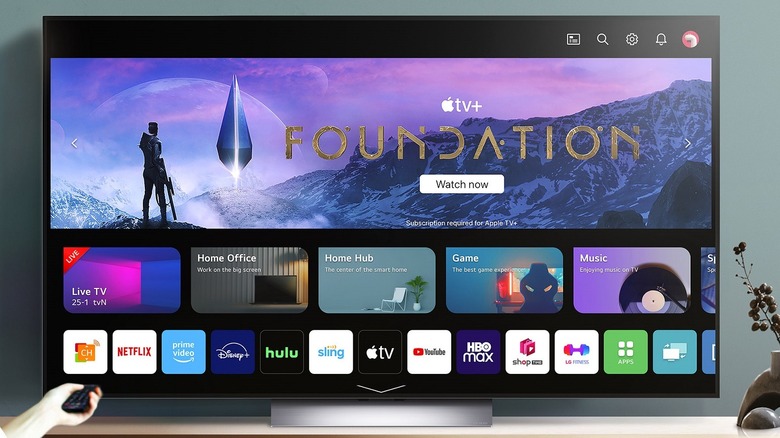
All LG smart TVs run the company’s own webOS, so the process of disabling tracking and data collection features is the same on nearly all of its models. One of the features you need to disable is Live Plus, which uses ACR to collect information about what you watch on your LG TV. Here’s how to do that.
- Navigate to the home screen on your LG TV and then press the Settings button on the remote.
- Select All Settings.
- Head to the General tab.
- Scroll down to select Additional Settings on the list.
- Turn off the Live Plus toggle to disable the ACR feature.
Within the Additional Settings menu on your LG TV, you’ll also find options to disable banner ads and content recommendations. Simply select Home Settings in the Additional Settings menu and uncheck the Home Promotion and Content Recommendation boxes. To limit ad tracking on your LG TV, you need to select Advertisement in the same menu and turn on the Limit AD Tracking toggle.
Finally, you should prevent LG from selling your data to third parties. To do this, head to Settings > Support > Privacy & Terms and turn on the Do Not Sell My Personal Information toggle.
Samsung TV
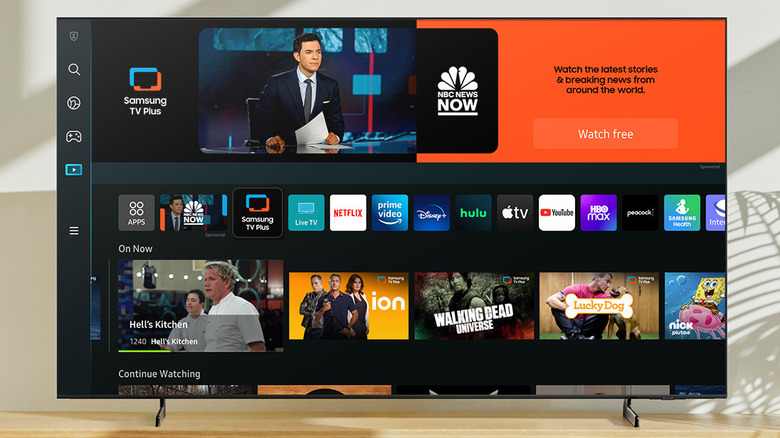
Similar to LG, all Samsung TVs run the company’s own Tizen OS. However, depending on your Samsung TV model, the steps for disabling ACR and ad tracking can vary. Samsung refers to its ACR technology as Viewing Information Services, which you should disable. Additionally, you need to disable Internet-based Advertising and Voice Recognition Services. If you have a newer Samsung TV, you can follow these steps to do all of this:
- Go to the home screen on your Samsung TV.
- Press the Menu button on the remote and select Settings > All Settings.
- Select Terms & Privacy or Terms & Policies.
- Go to Privacy Choices and then select Terms & Conditions, Privacy Policies.
- Uncheck the Viewing Information Services and Internet Based Advertisement checkboxes.
- Finally, to disable voice recognition services, head to General & Privacy > Voice.
If you can’t seem to follow the above steps, you’ll need to disable tracking via Smart Hub. Here are the steps for the same.
- Open Smart Hub on your Samsung TV.
- Head to Settings > Support > Terms & Policy (or Terms and Policy > Privacy Choices).
- Turn off SyncPlus, Marketing, and Voice Recognition Services from this menu one by one.
Amazon Fire TV
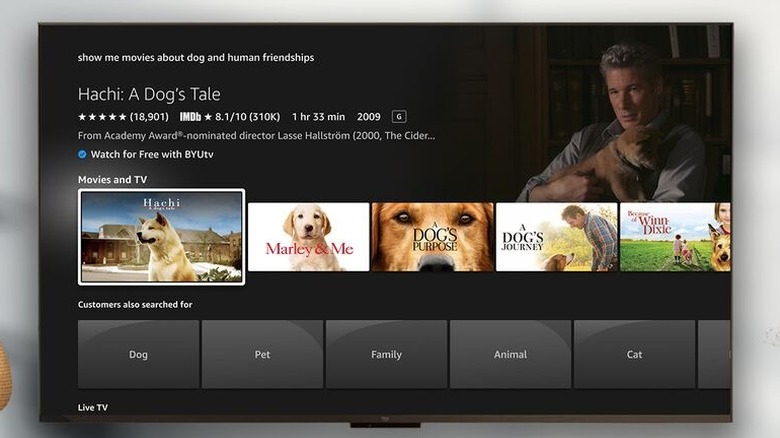
Fire TV OS is used on Amazon’s own TVs, as well as on certain smart TVs made by budget TV brands like Toshiba and Insignia. It is also on Fire TV Stick and Fire TV Cube streaming devices. Like other smart TVs, Amazon’s Fire OS tracks how you use the Fire TV for marketing and product improvement purposes. The good news is that Fire TV OS groups all these options under the Privacy Settings menu, so it’s easy to disable all of them. Here are the steps you need to follow.
- Open the Settings menu on your Fire TV.
- Go to Preferences.
- Select Privacy Settings from the list.
- Find and disable Device Usage Data, Collect App and Over-the-Air Usage, and Interest-Based Ads options one by one.
Fire TV OS also gathers data about which apps you open, how long you use them, and which channels you watch through the antenna, all for targeted advertising.
Roku TV
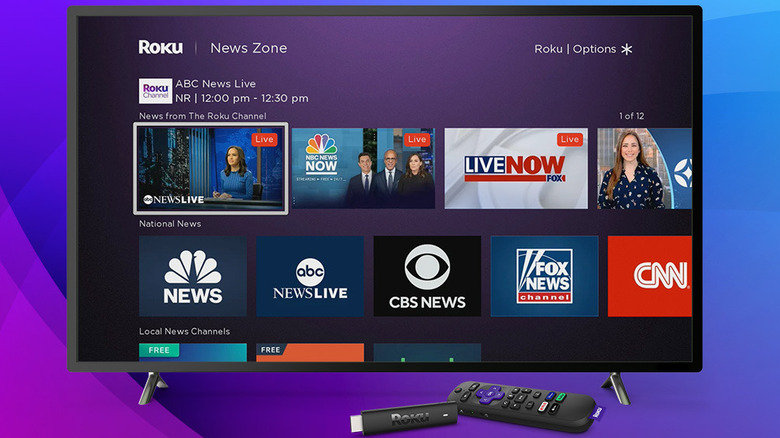
There are several brands that create Roku TVs, including Hisense, TCL, RCA, Westinghouse, and others. If you have a TV powered by Roku, you need to disable the Use Info from TV Inputs option to prevent Roku from collecting information about what you’re watching, including programs, channels, and even commercials. Here’s how to do it.
- Open the Settings menu on your Roku TV.
- Scroll down and select Privacy.
- Select Smart TV Experience from the list.
- Turn off the Use Info from TV Inputs option.
- Next, select Advertising in the Privacy menu.
- Go to Limit ad tracking, select Advertising, and then uncheck the Personalized ads option.
- Return to the Privacy menu and select Voice.
- Finally, disable Microphone access and Speech recognition checkboxes.
It’s a good idea to opt out of personalized ads, revoke microphone access, and disable speech recognition services on your Roku TV to enhance privacy even further than opting out of tracking.
Vizio TV
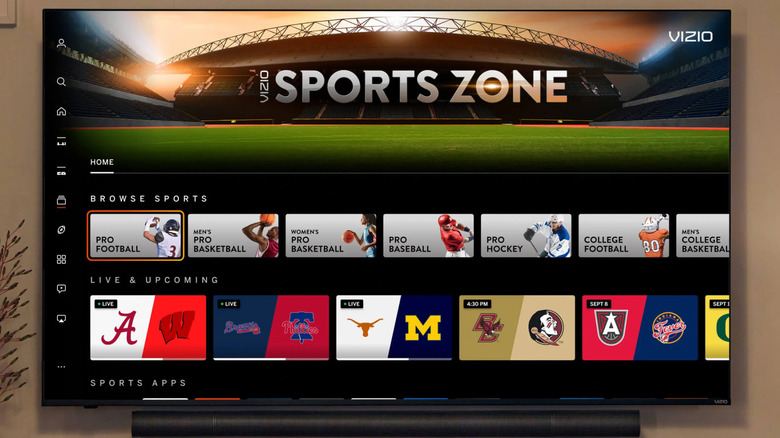
Vizio, which is now owned by Walmart, uses its SmartCast OS on its TVs. If you own a Vizio TV, you can disable its ACR feature using these steps:
- On your Vizio TV remote, press the Menu button.
- Go to System and then select Reset & Admin.
- Locate Viewing Data and press the right arrow to set it to Off.
You can also limit ad tracking to prevent personalized ads on Vizio TV. Here’s how:
- Press the Menu button on your TV remote.
- Go to Admin & Privacy (on Vizio TVs made after 2020) or System > Reset & Admin (on older models).
- Select Advertising. Enable Limit Ad Tracking and reset TV Ad ID.
Keep in mind that while disabling the above-listed options will prevent your Smart TV from collecting information about your viewing habits and preferences, it may affect the functionality of some of the features, like content recommendations. Also, it’s a good idea to review these settings regularly, as software updates can easily change them without you noticing.
Source: http://www.slashgear.com/1802724/smart-tv-spying-features-turn-off-how-stop-data-collecting/
You may also like

